Calligraphy Print Size Calculator & Printable Image Dimensions
A print file needs two kinds of dimensions: the physical area it should occupy and the pixels available to describe its detail. Confusing them can produce a tiny image, an unexpectedly large print, or a blurred enlargement. Choosing an image size for printing means connecting those two specifications. This print size calculator does that while building your actual calligraphy artwork. Enter a paper size, resolution, margins, and message. The page preview shows the arrangement, and the result states the integer image dimensions required for export. Your selected font is measured and fitted inside the printable area before the PNG is rendered at the requested resolution.
Calculate Calligraphy Image Size for Printing
Begin with the finished page dimensions, not an existing screenshot's width. A five-by-seven-inch card at three hundred pixels per inch requires a 1500-by-2100-pixel image. Margins reduce the region available for text but do not change the exported page dimensions. A quarter-inch margin on each side leaves a four-and-a-half-by-six-and-a-half-inch interior. The calculator fits lettering within that interior and displays a visible guide around it. If the margins consume the page, it reports the problem instead of exporting an empty or clipped composition. The preview remains proportional even when it must shrink considerably to fit a small phone screen.
Convert Print Dimensions into Pixels
The calculation is direct: pixels equal inches multiplied by PPI. Convert centimeters to inches by dividing by 2.54, or millimeters by 25.4, before multiplying. Since an image cannot contain a fraction of a pixel, the export rounds each dimension to the nearest integer. An A4 page measures 210 by 297 millimeters; at three hundred PPI, its rounded dimensions are 2480 by 3508 pixels. That rounding can introduce a tiny difference in the implied physical size, which is normal. If you are working backward from an existing image, dividing its pixels by your desired PPI gives the corresponding pixels to print size relationship.
Calligraphy PNG Size Calculator & Print Resolution
Resolution describes how densely image pixels are assigned to physical space. It does not change the wording, paper proportions, or margins. Increasing PPI increases the pixel count of the exported page, allowing the font to be drawn with more raster detail. This PNG size calculator keeps the physical layout stable while rendering a larger output. The browser preview is separate from the export and may use fewer display pixels for responsiveness. The PNG includes density metadata so that software capable of reading it can infer the intended physical size, although print dialogs can still override that interpretation.
Choosing 150 DPI vs 300 DPI for Calligraphy
People often use DPI when discussing image resolution, while PPI describes the pixels in an image and DPI can describe printer dots. The resolution control here specifies image PPI. At the same physical size, three hundred PPI gives twice as many pixels in each direction as one hundred fifty PPI and four times as many overall. Fine strokes can benefit from the extra detail, but the printer, paper, and viewing distance still matter. Six hundred PPI creates larger files again. Follow the requirements of the print workflow you are using rather than assuming the highest number always improves the result or fixes a design that is too small to read.
How to Download High-Resolution Calligraphy PNGs
Choose your physical page size and resolution before downloading. The exporter creates a canvas at the exact calculated output dimensions and draws the loaded font into it at the appropriate scale. It does not stretch the small live preview into a larger bitmap. Choose the selected background, a forced white background, or transparency according to where the image will be placed. An export is blocked when either side exceeds twelve thousand pixels or the image exceeds forty-eight million pixels. These limits are reported without silently lowering your chosen resolution. Browser memory can impose a lower practical limit; reduce the size or PPI if the browser cannot allocate the requested image.
How to Use Our Calligraphy Print Calculator
Use the controls in the same order you would prepare a physical sheet: paper, orientation, margins, then lettering. Presets fill in common dimensions, but you can edit them afterward. Changing units converts the current physical size rather than resetting the page. Orientation swaps width and height while retaining their lengths. A live fit check measures your wording inside the remaining area, and the page outline shows where the lettering belongs. This print resolution calculator processes text locally in your browser. The only font files it loads are the fonts already bundled with the website.
Select Paper Size and Print Dimensions
Choose A4, A5, US Letter, or one of the common photo-card dimensions when those match your project. Use custom dimensions for a nonstandard insert or artwork panel. Check whether your printing workflow expects a finished trimmed size or a larger sheet. The margin control creates internal space for lettering; it is not a commercial bleed specification and does not add crop marks. If your printer requests bleed, prepare that additional production layout in a suitable design application. Enter a custom resolution when your provider specifies one, then review the required image width and height rather than relying on the preset's name alone.
Choose a Cursive Font and Export Your Design
Enter the actual message and choose one of the available local fonts. The tool wraps text to the usable width while preserving explicit line breaks, then searches for a font size that fits both dimensions. Adjust line height or alignment to improve the arrangement. Inspect accented characters and symbols because a font may not cover every character and the browser may use fallback glyphs. Download only after the selected font has loaded successfully. For exploring letterforms before building the page, use the Cursive Handwriting Font Generator. For a separate digital rectangle with explicit font-size limits, use the Cursive Font Size Calculator instead.
Best Print Sizes for Calligraphy Art and Invitations
The best calligraphy print size depends on what the piece must communicate and where it will be seen. A small place card and an A4 wall quotation need different proportions, even when they use the same words. Do not force a long message into a narrow format simply because a preset is convenient. Compare a shorter arrangement, a wider page, or a quieter typeface. The Text Width Calculator helps explain why two fonts occupy different widths at the same nominal size. A printed proof remains valuable because paper contrast and actual viewing distance are difficult to judge from a bright screen.
Calligraphy Printing for Wedding Invitations
For invitations, establish the card dimensions first and reserve generous room for names, dates, and supporting details. This tool creates a calligraphy printable, but it does not replace a complete multi-style invitation editor. You can export transparent lettering and place it within a larger composition if the remaining text needs a different font. Check that the receiving application preserves the image proportions and resolution. The signature PNG guide explains the practical distinction between transparent artwork and copyable text. A 300 DPI print size specification concerns the output pixels assigned to the card; it does not guarantee that fine decorative forms will be readable at every chosen physical size.
Preparing Handwritten Designs for A4 and Letter Paper
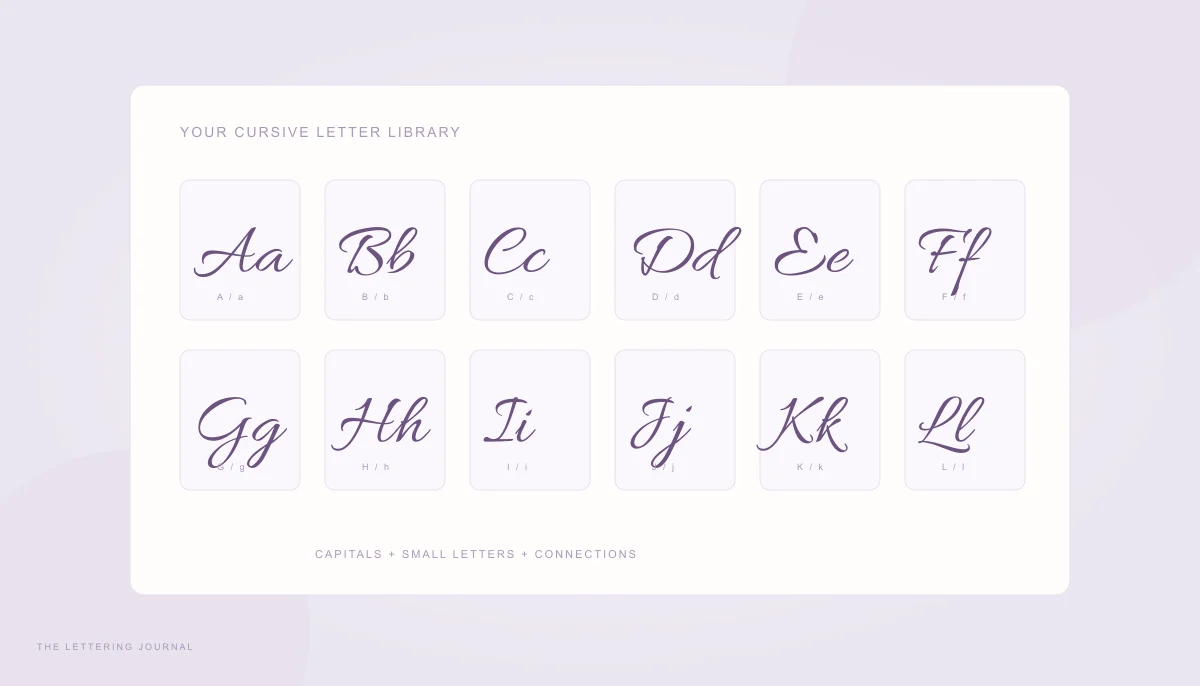
A4 and US Letter have different proportions, so switching presets can change line wrapping and the fitted size. Recheck the composition rather than assuming it will transfer unchanged. At three hundred PPI, US Letter requires 2550 by 3300 pixels. Select actual size or one hundred percent in your print dialog, check the paper selection, and disable automatic fit-to-page scaling when precise dimensions matter. Printer hardware may still leave unprintable edges, so choose internal margins that suit your equipment. For alphabet practice sheets, consult the cursive alphabet guide and print a small test before producing multiple pages. Measure that first proof with a ruler to confirm the complete workflow.